

SSH Connection Setup
Generate and configure SSH keys for secure GPU instance access.
What Are SSH Keys?
SSH keys are cryptographic key pairs for secure authentication:
- Public Key - Uploaded to Spheron AI
- Private Key - Kept secure on your machine, never shared
Benefits: Stronger security than passwords, automatic authentication, required for instance access.
Prerequisites
- Terminal access (Linux, macOS, or Windows)
- Spheron AI account
- Basic terminal familiarity
Generate SSH Key
Run ssh-keygen
Linux/Mac:Windows PowerShell:
ssh-keygen -t ed25519 -C "your_email@example.com"ssh-keygen -t ed25519 -C "your_email@example.com"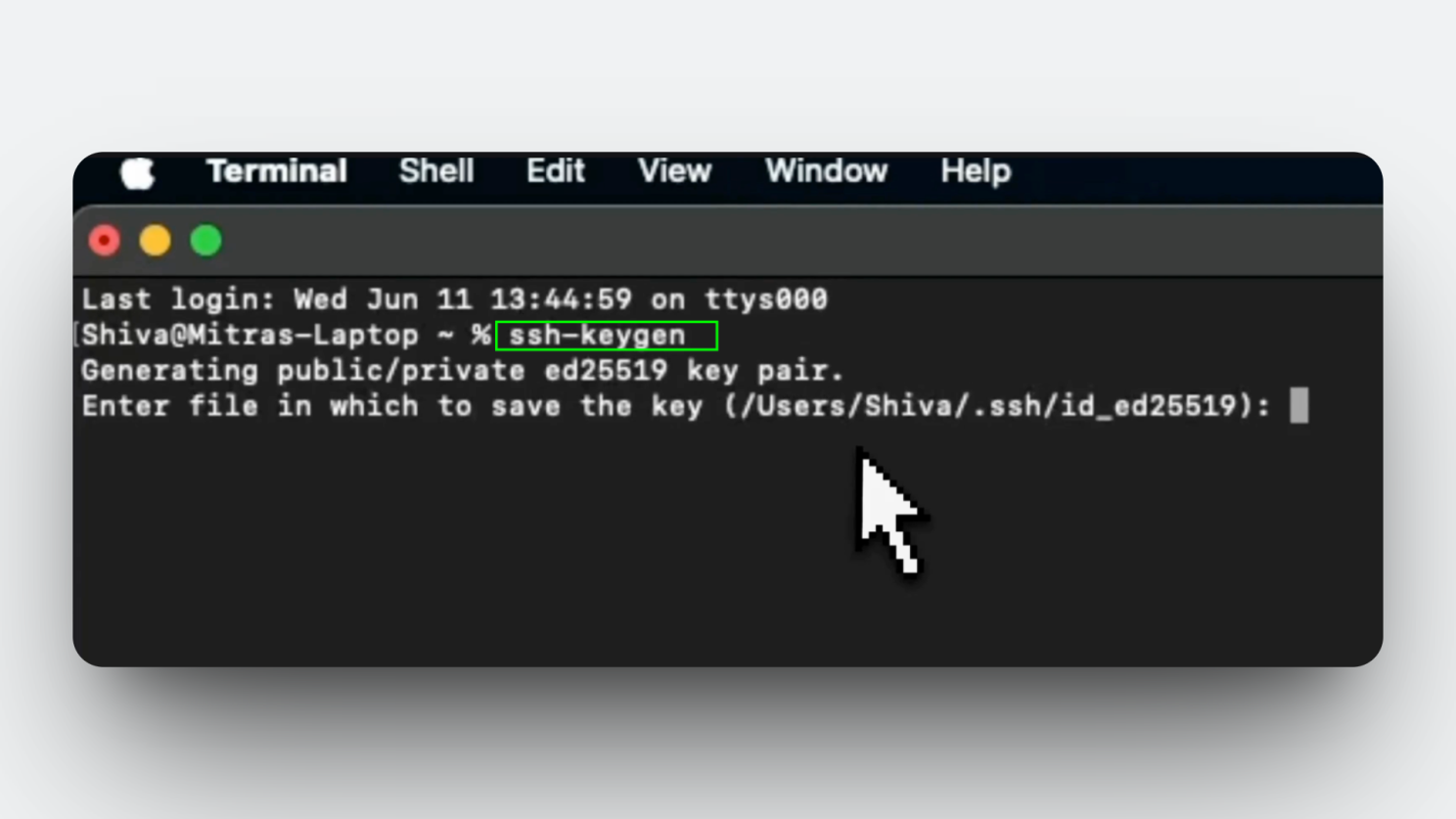
Configure Key
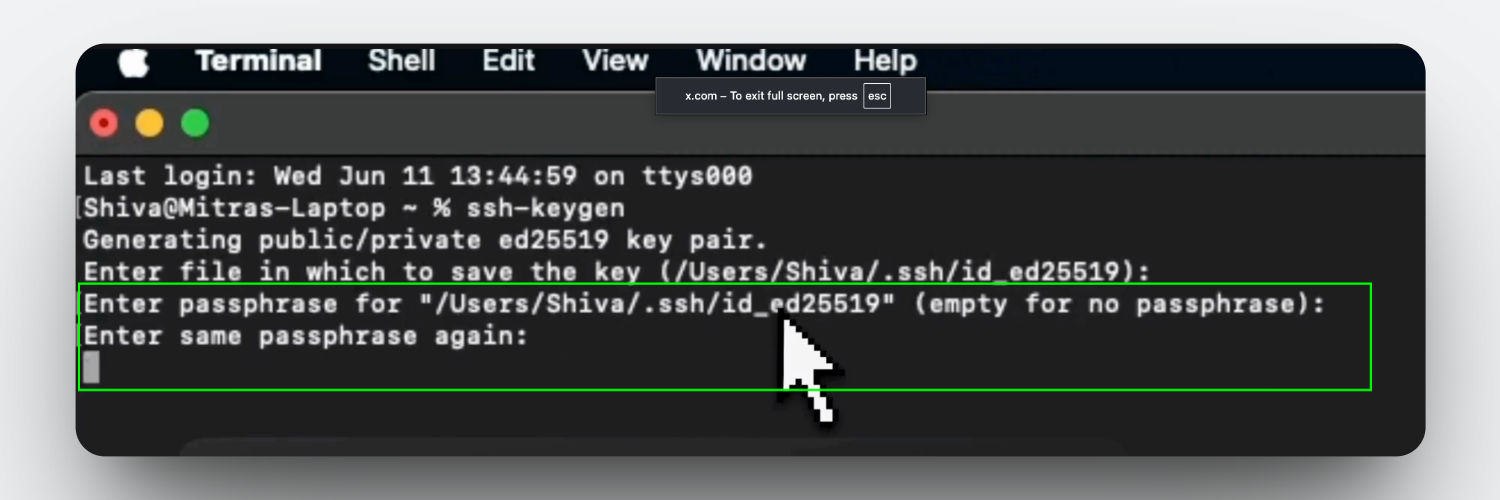
- Save location: Press Enter for default (
~/.ssh/id_ed25519) - Passphrase: Press Enter twice (none) or set passphrase for extra security
Verify Creation
Output shows:
Your identification has been saved in /Users/yourname/.ssh/id_ed25519
Your public key has been saved in /Users/yourname/.ssh/id_ed25519.pub- Private key:
id_ed25519- Never share - Public key:
id_ed25519.pub- Upload to Spheron
Upload to Spheron AI
Method 1: Account Settings (Recommended)
For reusable keys across multiple deployments:
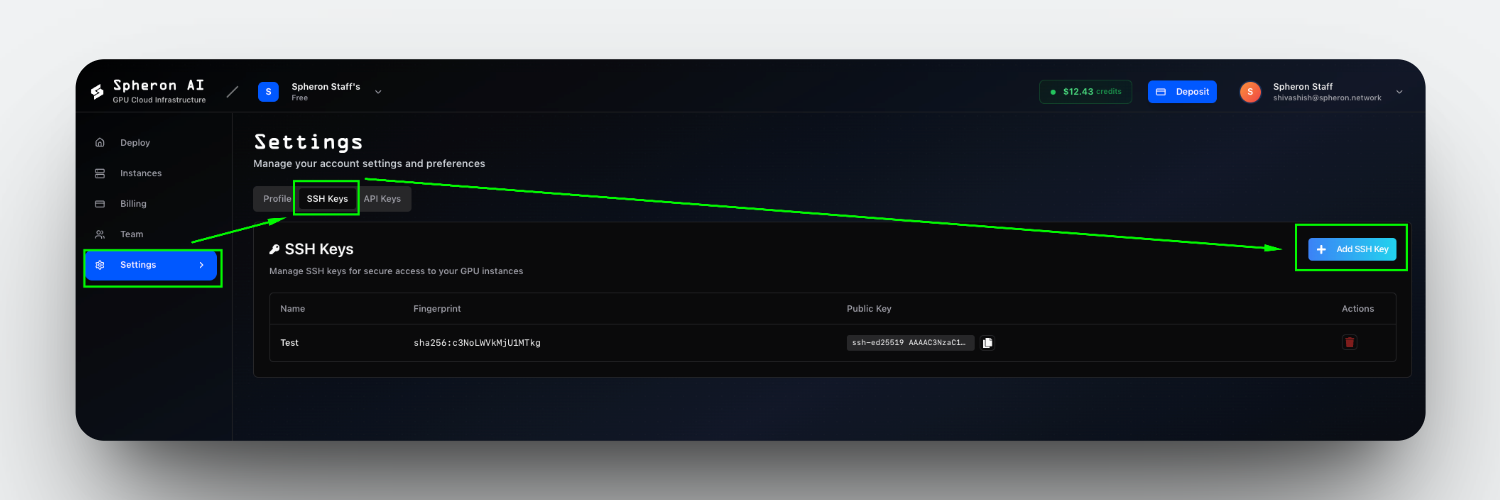
Navigate to Settings
app.spheron.ai → Settings → SSH Keys
Add Key
- Click + Add SSH Key
- Enter key name
- Paste public key content:
# Display your public key
cat ~/.ssh/id_ed25519.pub- Click Add Key
Method 2: During Deployment
Upload key when deploying instance:
- Select Upload New SSH Key option
- Choose file or paste public key content
- Enter key name
- Continue deployment
Connect to Instance
ssh root@your-instance-ip
# Or specify key explicitly
ssh -i ~/.ssh/id_ed25519 root@your-instance-ipBest Practices
- ✅ Only upload public keys (
.pubfiles) - ✅ Never share private keys
- ✅ Use passphrases for additional security
- ✅ Rotate keys every 90 days
- ✅ Use different keys for different services
- ✅ Backup private keys securely
- ✅ Delete unused keys
See Security Best Practices for comprehensive guidance.
Troubleshooting
Permission denied:# Check key is loaded
ssh-add -l
# Add key to agent
ssh-add ~/.ssh/id_ed25519
# Verify permissions
chmod 600 ~/.ssh/id_ed25519
chmod 644 ~/.ssh/id_ed25519.pub- Verify correct public key uploaded
- Check key fingerprint matches
- Try with explicit key:
ssh -i ~/.ssh/id_ed25519 user@ip
- Verify instance is running
- Check IP address is correct
- Ensure firewall allows SSH (port 22)
Additional Resources
- Getting Started - Complete setup guide
- User Settings - Manage SSH keys
- Security - Security best practices
- Quick Start - Fast deployment